ChatGPT can sometimes lose its connection while generating a response. The message may appear when your internet becomes unstable, your browser blocks a connection, or ChatGPT faces a temporary service issue.
The good news is that you can usually fix the problem quickly. Start with simple checks before changing advanced settings. OpenAI recommends checking its service status, refreshing the page, trying another browser or network, and disabling VPNs or browser extensions.
Why Does ChatGPT Show a Network Error?
A network error means ChatGPT could not maintain a reliable connection with its servers. Your Wi-Fi, VPN, proxy, browser extension, or network security settings can interrupt that connection.
A temporary OpenAI service problem can also cause the error. Check the service status first if ChatGPT suddenly stops working across different chats or devices.
Fix ChatGPT Network Error Quickly
Try these simple fixes in order. Test ChatGPT after each step.
1. Refresh the page.
Reload ChatGPT and send your message again. If the response stopped halfway, start a new chat.
2. Check your internet.
Open another website. If it also loads slowly, restart your router or switch to another connection.
3. Disable your VPN.
Turn off your VPN or proxy and reconnect to ChatGPT. OpenAI specifically recommends this for network errors.
4. Try another browser.
Open ChatGPT in Chrome, Edge, Firefox, or a private window. This quickly identifies browser-related problems.
Clear Cache and Browser Data
Old cache files can interfere with ChatGPT. If the service worked normally before the error appeared, clearing browser data may restore the connection.
Try incognito or private mode first. If ChatGPT works there, an extension or stored browser data likely caused the problem. OpenAI recommends disabling extensions, especially privacy and security tools, when troubleshooting connection issues.
Disable Extensions and Security Tools
Some extensions can block scripts or connections that ChatGPT needs. Ad blockers, privacy tools, script blockers, and security extensions can sometimes interfere with web applications.
Disable these tools temporarily and reload ChatGPT. If the error disappears, enable the extensions one at a time to find the one causing the problem.
Try Another Network
Your current network may block or interrupt ChatGPT connections. This can happen on office, school, or public Wi-Fi networks with strict security rules.
Switch from Wi-Fi to mobile data or another trusted connection. If ChatGPT works after the switch, your original network likely caused the issue. OpenAI also recommends testing another network or device when connection errors continue.
Start a New Chat
Sometimes a long conversation can create loading or response problems. Starting a fresh chat gives ChatGPT a clean session.
If the error appears only in one conversation, create a new chat and resend your request. OpenAI recommends this approach for chats that become stuck or unresponsive.
Check OpenAI’s Status Page
If nothing changes, check OpenAI’s official status page. A temporary server issue can affect ChatGPT even when your internet works perfectly.
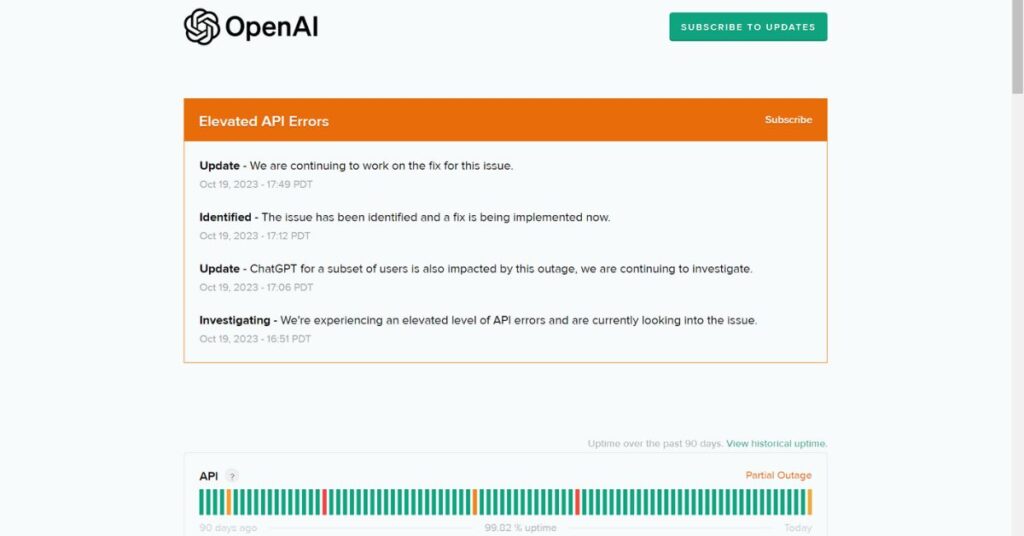
If OpenAI reports an active incident, wait until the service recovers. Repeatedly refreshing the page will not fix a server-side outage.
Quick Fix Table
| Problem | Quick Fix |
| Unstable internet | Restart router or change network |
| VPN connection | Disable VPN |
| Browser issue | Try another browser |
| Old cache | Clear cache and cookies |
| Extension conflict | Disable extensions |
| One chat fails | Start a new chat |
| Service outage | Check OpenAI status |
When Should You Contact Support?
If ChatGPT shows the error across different browsers, devices, and networks, the problem may need further investigation. First, record when the error appears and note the browser and device you use.
OpenAI recommends collecting useful diagnostic information when normal troubleshooting fails. You can then contact support and explain what you already tested.
Frequently Asked Questions
Why does ChatGPT keep showing a network error?
Your connection, VPN, browser, extensions, or OpenAI’s servers may cause the problem. Test another network and browser first.
Can a VPN cause ChatGPT network errors?
Yes. VPNs and proxies can interrupt or change your connection to ChatGPT. Disable them temporarily and test again.
Will clearing cache fix ChatGPT?
It can. Old or damaged browser data may interfere with ChatGPT. Try private browsing first, then clear the site’s cache and cookies.
Why does ChatGPT work on mobile data but not Wi-Fi?
Your Wi-Fi network may block or filter ChatGPT traffic. OpenAI recommends checking network settings and testing another connection.
What should I do if nothing fixes the error?
Check OpenAI’s status page, test another device and network, and contact OpenAI Support if the problem continues.
Conclusion
You can often fix ChatGPT network errors in a few minutes. Start by checking your internet, refreshing the page, disabling your VPN, and testing another browser.
If the problem continues, clear your cache, disable extensions, switch networks, and start a new chat. Finally, check OpenAI’s status page to see whether a wider service issue is causing the problem.