Seeing “An Error Occurred on Login” can stop you from opening your ChatGPT account. The message does not always identify the exact cause, so you need to check the login process from several angles.
A temporary server issue, browser problem, network connection, or account-related issue can interrupt the sign-in process. Start with simple checks before changing advanced settings.
Start With a Fresh Login Attempt
First, close the ChatGPT login page and open it again. Then enter your credentials carefully and try signing in once more.
If you use Google, Apple, or another sign-in option, choose the same method you used when creating the account. Using a different method can sometimes lead to account or authentication confusion.
Avoid making many rapid login attempts. Give the service a short moment and then try again.
Your Browser Could Be Blocking the Login
Browser settings can interfere with authentication pages. Cached data, cookies, extensions, and privacy tools can affect how the login process works.
Open ChatGPT in a private or incognito window and try again. If login works there, your normal browser profile likely contains the problem.
You can then clear ChatGPT-related cookies and cache. Also disable extensions that modify scripts, cookies, or website traffic, then test the login again.
Test Your Internet Connection
A weak or unstable connection can interrupt authentication. Even when other websites open normally, the connection may still fail during a secure login request.
Try another trusted network or switch between Wi-Fi and mobile data. If ChatGPT works on another connection, your original network may have caused the problem.
You should also temporarily disable a VPN or proxy. Some network configurations can interfere with authentication requests.
Check ChatGPT Service Status
Sometimes the problem has nothing to do with your device. OpenAI can experience temporary service issues that affect login or authentication.
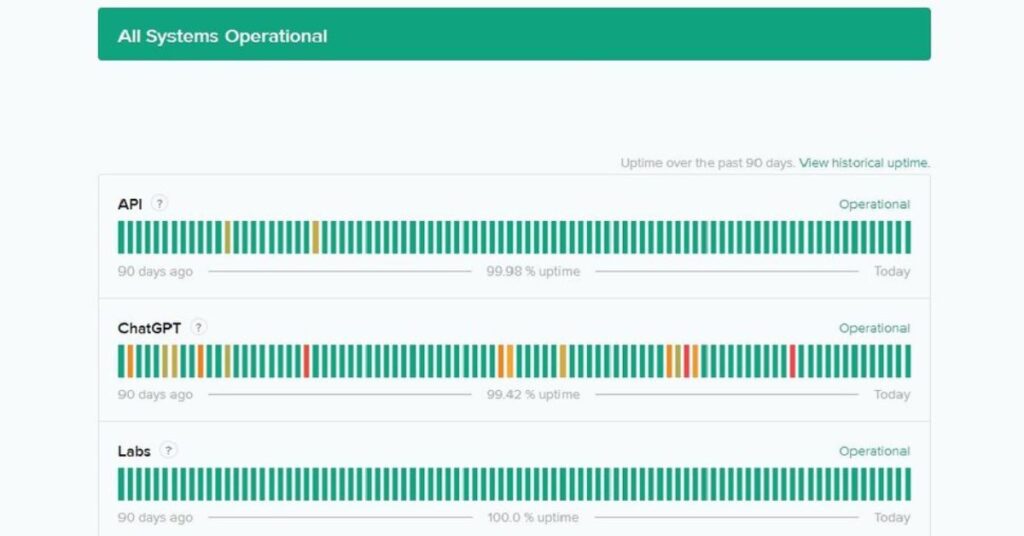
Check the official OpenAI status page before changing browser settings or reinstalling the app. If the service reports a login problem, wait for the issue to recover and try again later.
This check can save time because you do not need to troubleshoot your device when the problem affects the service itself.
Try Another Device or Browser
A second device can help you identify the source quickly. Try signing in from another supported browser or device using the same account.
If the login works there, your account likely remains accessible. Focus on the original browser, app, network, or device.
If the same error appears everywhere, the problem may involve the account, authentication service, or wider ChatGPT issue.
Mobile App Login Problems
If you see the error inside the ChatGPT mobile app, first update the app through your official app store.
Then completely close the application and restart your phone. If the problem continues, check whether your device has a stable internet connection.
You can also reinstall the official ChatGPT app when normal troubleshooting fails. Always download the app from an official source.
Keep Your Account Details Consistent
Use the correct email address and authentication method associated with your account. If you normally select Continue with Google, use that option instead of entering a separate password.
If you recently changed account credentials, allow the change to complete before trying repeatedly. Also check whether your browser automatically fills an old email or password.
Small login mistakes can create confusing error messages, especially when multiple accounts exist on the same device.
A Quick Comparison of Common Causes
| Possible Cause | Best Action |
| Browser cache | Clear site data |
| Extension conflict | Disable extensions |
| VPN or proxy | Turn it off temporarily |
| Weak connection | Try another network |
| App issue | Update or reinstall |
| Service outage | Check OpenAI status |
| Wrong login method | Use the original sign-in option |
Use this table to narrow down the problem instead of trying every fix at once.
When the Error Keeps Returning
If the same message appears after testing different browsers, networks, and devices, stop repeating basic fixes.
Check the official OpenAI Help Center and support options for account-specific assistance. Provide the exact error message and explain what happens immediately before it appears.
Do not share your password, authentication codes, or other sensitive account information with anyone claiming to fix your login.
Frequently Asked Questions
Why does ChatGPT show an error when I log in?
A temporary service problem, browser issue, network problem, or authentication error can interrupt the login process.
Can clearing cookies fix the login problem?
Yes. Old or damaged cookies can interfere with authentication. Clear ChatGPT-related site data and try signing in again.
Should I disable my VPN?
Try disabling it temporarily. If ChatGPT works afterward, your VPN or its assigned network address may have affected the connection.
What if ChatGPT works on another browser?
That usually points toward a browser-specific problem. Clear the original browser’s cache and cookies, then check its extensions.
What should I do if nothing fixes the error?
Check OpenAI’s service status and official support resources. If the service works normally but your account still cannot log in, contact OpenAI Support.
Get Back Into ChatGPT
ChatGPT An Error Occurred on Login does not always indicate a serious account problem. A browser conflict, unstable connection, VPN, outdated app, or temporary service issue can interrupt the process.
Start with a fresh login, test another browser or network, and check the official service status. These simple checks can quickly show whether the problem comes from your setup or ChatGPT itself.