Paying for ChatGPT Plus does not always mean the features will appear immediately on the screen. The most common problem involves the ChatGPT account linked to the purchase.
OpenAI says a paid plan should appear when you sign into the same ChatGPT account used for the purchase. Mobile subscriptions also connect to the Apple or Google account used during payment.
Start With the Account That Made the Purchase
The first check should focus on your ChatGPT account. You may have completed the payment correctly but signed into another account afterward.
Sign out and return using the same authentication method you used during checkout. If you originally used Google, use Google again. The same applies to Apple, Microsoft, or email and password.
OpenAI specifically recommends signing into the original ChatGPT account when a paid plan does not appear.
Find Where Your Subscription Lives
Your payment platform can reveal where the subscription belongs. ChatGPT supports subscriptions through the web, Apple App Store, and Google Play.
Check the platform that processed your payment. A web purchase appears in ChatGPT billing, while Apple and Google purchases appear through their respective subscription systems.
| Purchase Method | Where to Check |
| ChatGPT website | ChatGPT → Settings → Billing |
| Apple App Store | Apple Subscriptions |
| Google Play | Google Play Subscriptions |
This check can prevent you from buying Plus again when you already have an active subscription.
Restore a Mobile Purchase
If you purchased Plus through Apple’s App Store, ChatGPT provides a Restore purchases option. Open the ChatGPT iOS app, go to Settings → Account, and select Restore purchases.
This process reconnects the mobile purchase with the ChatGPT account that originally made the subscription.
If you purchased through Google Play, check that you use the Google account that completed the purchase. OpenAI states that mobile subscriptions connect the store account with the ChatGPT account used during signup.
Confirm the Payment Actually Reached ChatGPT
A successful bank or card charge does not automatically mean you are viewing the correct ChatGPT account.
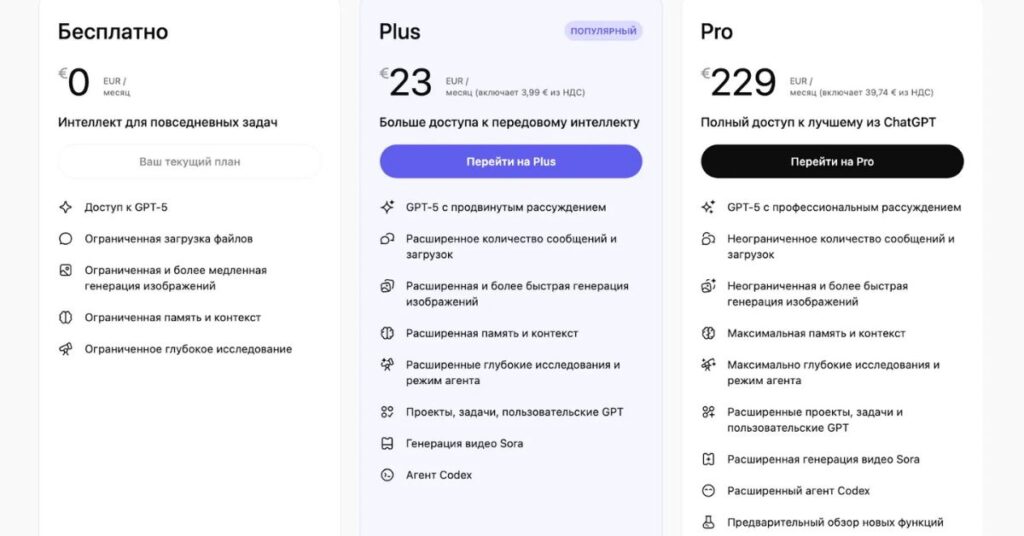
For web subscriptions, open Settings → Billing and review the available subscription information. OpenAI also provides invoice history through the billing portal for Plus and Pro accounts.
If you cannot find the invoice, check whether you signed into the correct account. Apple and Google purchases do not appear in the normal web invoice history.
Do Not Purchase Plus Again
Avoid making another purchase simply because the features have not appeared. A second purchase can create duplicate subscriptions and multiple charges, especially when you switch between the web, Apple, and Google platforms.
Instead, identify the original payment platform and account first. Then restore or manage that existing subscription.
This step can save you from paying twice for the same service.
Refresh the Session After Verification
Once you confirm the correct account and subscription, refresh your ChatGPT session.
Sign out, close the browser or app, and sign in again. You can also test ChatGPT through another browser to rule out a temporary session problem.
If the Plus plan appears on another device, your account subscription is likely active, and the original device may simply need a fresh session.
When the Subscription Still Does Not Appear
If your payment succeeded but the plan remains missing, contact OpenAI Support while signed into the account connected to the charge.
Provide useful payment information, such as the account email, payment date, and last four digits of the payment card when requested. OpenAI advises users not to provide the full card number.
For mobile purchases, also keep your Apple or Google purchase receipt available. Support can use these details to locate the subscription and determine what happened.
Common Payment and Account Problems
The issue usually falls into one of a few categories:
Wrong ChatGPT account: You paid through one account but opened another.
Different authentication method: You used Google during purchase but later signed in with email and password.
Mobile purchase not restored: The App Store purchase needs restoration.
Platform confusion: You checked ChatGPT billing even though Apple or Google processed the payment.
Duplicate subscription: You started another subscription before finding the original one.
Identifying the correct category helps you fix the actual problem instead of repeating random troubleshooting steps.
Frequently Asked Questions
Why are my Plus features missing after payment?
You may be signed into a different ChatGPT account from the one that received the subscription. Check the original account and login method first.
Do I need to buy Plus again?
No. First confirm your existing subscription and payment platform. Buying again can create duplicate charges.
How do I restore my Apple subscription?
Open the ChatGPT iOS app and select Settings → Account → Restore purchases.
Can I use Plus on another device?
Yes. You can access the subscription on other devices by signing into the same ChatGPT account that holds the subscription.
What if my payment went through but Plus remains missing?
Confirm the account, check the platform that processed the payment, restore the purchase when applicable, and contact official OpenAI Support if the plan still does not appear.
Get Your Paid Features Back
When ChatGPT Plus features not appearing after payment, start with the account rather than the app. Confirm the account, login method, and platform that processed your payment.
Then restore the subscription when needed and check your billing information. Do not make another purchase until you confirm what happened to the original subscription.