A Claude Internal Server Error usually means Claude could not complete a request. The problem may come from Anthropic’s servers, your browser, your internet connection, or the chat itself. The message can look serious, but it often points to a temporary issue.
Sometimes the service recovers without any action. In other cases, a browser refresh, a new conversation, or a network change can solve the problem. The best approach starts with simple checks. You should first find out whether Claude has a wider service problem or whether the issue only affects your device.
What Does Claude Internal Server Error Mean?
This message appears when Claude fails while processing a request. The service may receive your message but fail to return a normal response. This situation can happen because of temporary server load, a processing problem, or a connection failure.
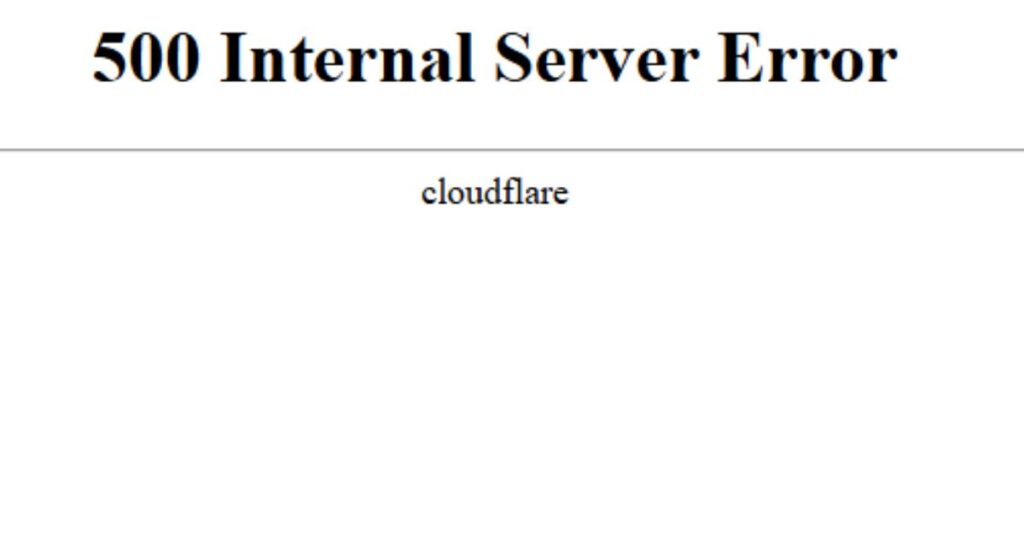
The message does not always mean that your account has a serious problem. If Claude works in a new chat or another browser, the original conversation or browser setup may have caused the issue. If Claude fails across different devices and networks, the service itself may need attention.
Why Does Claude Internal Server Error Happen?
This problem can have several causes. A temporary problem on Anthropic’s side can affect many users at once. Heavy traffic can also make requests fail or take longer to process.
Local problems can create similar results. Old browser data, blocked scripts, extensions, VPN settings, or an unstable network can interrupt requests. A very long conversation or a large file can also create processing trouble.
Anthropic recommends clear prompts and breaking complex requests into smaller parts, which can make difficult tasks easier to handle.
Check Claude’s Service Status
When Claude suddenly stops working, check Anthropic’s service status first. This check can save time because a service outage needs patience rather than browser changes. If Anthropic reports an active incident, wait for the service to recover and test it again later.
If the status page shows normal service, send a short test message. Avoid your original long prompt at first. If the short message works, the issue may involve the old conversation, file, or request rather than the whole service.
Refresh Claude and Start a New Chat
The error may disappear after a simple refresh. Reload the page and wait a few seconds before sending the request again. If the page still behaves strangely, close the browser tab and open Claude again.
Starting a new conversation can help when one old chat keeps failing. Long chats contain more context, so a fresh conversation gives Claude a cleaner starting point. Copy only the important details into the new chat instead of moving the entire conversation.
You can also test a short request before returning to your main task. This simple check tells you whether Claude can process normal messages.
Clear Cache and Check Browser Extensions
A Claude Internal Server Error can sometimes come from old browser data. Browsers store files and cookies to load websites faster, but damaged or outdated data can cause web apps to behave badly.
Try Claude in a private or incognito window. If it works there, your normal browser setup may cause the problem. You can then clear Claude-related site data and disable extensions that modify pages or network requests.
Ad blockers, privacy tools, script blockers, and VPN extensions deserve special attention. Turn them off temporarily and test Claude again. If another browser works normally, focus on fixing the original browser instead of changing your account settings.
Check Your Internet Connection
A Claude Internal Server Error can appear when your connection drops during a request. Claude needs a stable connection to send your message and receive its response. A weak or unstable network can interrupt that exchange.

Open other websites to check your connection. If they also load slowly, restart your router or switch to another trusted network. You can also test mobile data if your phone supports it.
VPNs can also change how your traffic reaches online services. If you use a VPN, disconnect it for a short test. If Claude works afterward, the network route may have caused the problem.
Reduce Large Prompts and Files
A large request can create problems even when Claude itself works normally. Long instructions, large files, and complex tasks can require more processing. Anthropic also recommends breaking complex requests into smaller parts when creating prompts.
If a file triggers the error, remove it and send a simple text request. If the text works, try the file again after reducing its size or splitting the task. This method helps you identify whether the upload caused the failure.
You should also avoid putting several large tasks into one message. Ask Claude to handle one clear task at a time. This keeps the request easier to process and makes errors easier to trace.
Test Another Browser or Device
If a Claude Internal Server Error continues, test another browser. This quick comparison can show whether the problem belongs to your current browser. If Claude works in another browser, check extensions, cookies, cache, and browser settings on the first one.
You can also test another device. Try your phone if you normally use a computer, or use another computer if available. If Claude works there, focus your attention on the original device or network.
Do not change many settings before testing. A simple comparison gives you useful evidence. It also prevents you from making changes that do not address the real cause.
When Should You Contact Anthropic Support?
If the Claude Internal Server Error continues after basic checks, collect useful details before contacting support. Note the time, browser, device, network, and the type of request that caused the problem. Also mention whether a new chat works.
Anthropic provides support through its Help Center. Free Claude users can use the help resources and Fin, while paid users can request further help from the Product Support team. Anthropic recommends using the support messenger after signing in.
Give support a clear description of the problem. Explain what you tested and what happened. If the issue affects only one chat or file, mention that detail because it can help narrow the cause.
Quick Troubleshooting Comparison
The fastest fix depends on where the problem starts. You can compare the symptom with the likely cause before changing anything.
| Situation | Likely Cause | Best Response |
| Claude fails for many users | Service issue | Check status and wait |
| Only one chat fails | Conversation problem | Start a new chat |
| Private mode works | Browser data or extension | Clear data and disable extensions |
| Another browser works | Browser settings | Repair or reset the original browser |
| Another network works | Connection issue | Change or repair the network |
| A file triggers the error | File or processing issue | Reduce the file or split the task |
This table helps you avoid random fixes. Test one change at a time. That way, you can quickly learn which part of the setup caused the problem.
Frequently Asked Questions
Why does Claude show an internal server error?
A Claude Internal Server Error usually means Claude could not complete a request. A temporary service issue, browser problem, network failure, or difficult request can cause it.
Is the problem always on Anthropic’s side?
No. The service can work normally while your browser, network, extension, or conversation creates the failure.
Will starting a new chat fix the problem?
It can help when one long conversation causes trouble. A fresh chat removes the old conversation context and lets you test a simple request.
Should I clear my browser cache?
Yes, especially if Claude works in private browsing or another browser. Clear the site data and test again before making larger browser changes.
What if nothing works?
If Claude still fails across browsers and devices, wait and check the service status again. If the problem continues, contact Anthropic support with clear details about the error and your tests.
Conclusion
A Claude Internal Server Error does not always require a major fix. The problem may disappear after a refresh, a new chat, or a short wait. Browser data, extensions, network settings, and large requests can also create similar problems.
Start with the easiest checks. Look at the service status, test a new chat, use private browsing, and check your connection. Then test another browser or device if needed.
The key is to isolate the cause instead of changing everything at once. Once you know where the failure starts, you can choose the right fix and get back to using Claude with less frustration.