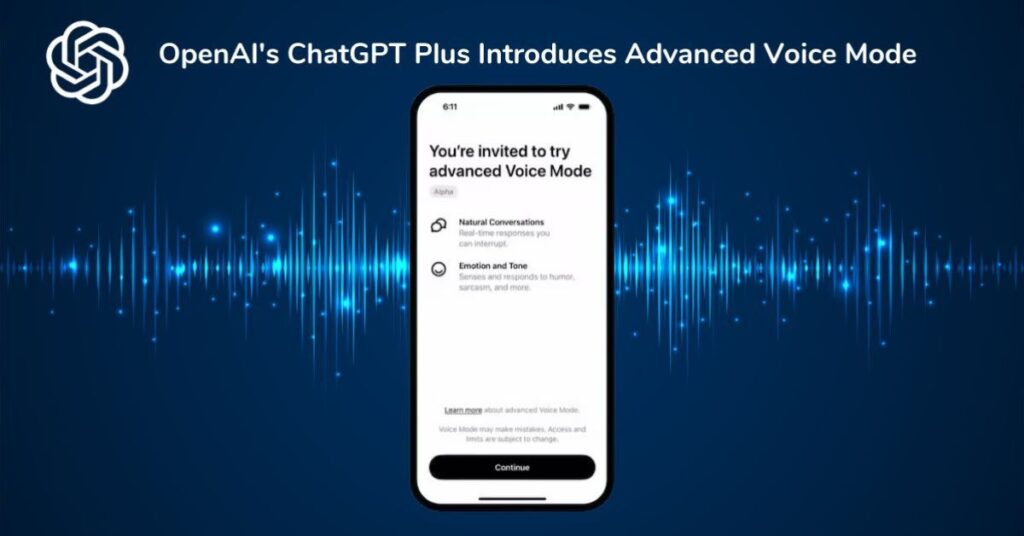
ChatGPT Voice Mode lets you talk to ChatGPT using your voice instead of typing. It is a useful feature for quick questions, conversations, and hands-free use. But sometimes, Voice Mode may stop working on Android.
If your ChatGPT voice is not responding, do not worry. The problem may be caused by a microphone permission, app issue, internet connection, or outdated version. The good news is that most of these problems are easy to fix.
In this guide, we will look at the common reasons why ChatGPT Voice Mode may not work on Android. We will also cover simple fixes you can try to get Voice Mode working again.
ChatGPT Voice Mode Not Working on Android: Root Causes and Connectivity Issues
When ChatGPT Voice Mode stops working on Android, the cause is often simple. A weak internet connection can interrupt voice conversations. The app may also have a temporary bug or an outdated version. Sometimes, microphone permission is turned off, so ChatGPT cannot hear you.
Here are some common causes to check:
- Poor internet: A slow or unstable connection can affect Voice Mode.
- Microphone permission: ChatGPT needs microphone access to hear your voice.
- Outdated app: An older version may have voice-related bugs.
- Temporary app glitch: Closing and reopening the app can sometimes fix it.
- Server issues: Voice Mode may not work properly if ChatGPT is experiencing a temporary service problem.
Why Standard Fixes Often Fail
Simple fixes do not always solve ChatGPT Voice Mode problems. Restarting the app may help, but it cannot fix deeper issues.
For example, microphone permissions, app settings, network problems, or outdated software can keep causing the issue. Users often miss these settings and repeat the same basic fixes.
That is why you should check the problem step by step. This approach helps you find the real cause instead of trying random solutions.
Deep Technical Solutions: Bridging the “Troubleshooting Gaps”
- Reset microphone permission: Open Settings > Apps > ChatGPT > Permissions > Microphone and select Allow. This gives ChatGPT direct access to your microphone.
- Clear the app cache: Go to Settings > Apps > ChatGPT > Storage > Clear Cache. This removes temporary files that may cause Voice Mode to behave incorrectly.
- Check battery restrictions: Open Settings > Apps > ChatGPT > Battery and allow normal or unrestricted background use. This can prevent Android from limiting the app during voice sessions.
- Update ChatGPT: Open the Google Play Store, search for ChatGPT, and install any available update. New versions can fix known voice and compatibility problems.
- Test your microphone: Open another voice or recording app and make a short recording. If the microphone also fails there, the issue may come from Android settings or the device itself.
- Switch your network: Try mobile data if Wi-Fi is unstable, or switch to a different Wi-Fi network. A stable connection helps Voice Mode maintain its real-time audio stream.
- Disable conflicting audio access: Close other apps that may use the microphone, such as call, recording, or voice-chat apps. This allows ChatGPT to access the microphone without interference.
- Reinstall ChatGPT: If the issue continues, uninstall and reinstall the app from the official Play Store. This creates a fresh app installation and can remove corrupted local data.
Account and Server-Side Troubleshooting
Sometimes, ChatGPT Voice Mode may fail because of an account or service issue. In this case, changing phone settings may not solve the problem.
First, sign out and sign in again to refresh your account session. Also, check whether Voice Mode works on another device with the same account.
If the problem continues, the issue may be server-side. Check ChatGPT’s service status and wait for any reported outage to end before trying again.
Comparison Table: Error Symptoms vs. Technical Fixes
Different Voice Mode errors can point to different causes. Use the symptom as a starting point, then apply the matching fix.
| Error Symptom | Technical Fix |
| ChatGPT cannot hear you | Check microphone permission |
| Voice keeps disconnecting | Check your internet connection |
| Voice Mode does not open | Update or restart the app |
| Audio sounds broken | Check volume and audio output |
| Nothing fixes the issue | Check for server or account problems |
Conclusion: Getting Your Voice Mode Back on Track
ChatGPT Voice Mode can stop working for many simple reasons. A weak connection, microphone permission, outdated app, or temporary server issue can cause the problem. In most cases, you can fix it with a few basic checks.
Start with the microphone, internet connection, and app settings. If these steps do not work, check your account or ChatGPT’s service status. With the right troubleshooting steps, you can usually get Voice Mode working again.
FAQs
1. Why is ChatGPT Voice Mode not working on Android?
It may happen because of microphone permissions, poor internet, app bugs, or an outdated app.
2. How do I fix ChatGPT Voice Mode on Android?
Check your microphone permission, update the ChatGPT app, and restart your device.
3. Does ChatGPT need microphone permission for Voice Mode?
Yes. Microphone access must be enabled so ChatGPT can hear your voice.
4. Can a poor internet connection affect Voice Mode?
Yes. An unstable or slow connection can cause delays, disconnections, or audio problems.
5. Should I clear the ChatGPT app cache?
Yes. Clearing the cache can remove temporary data that may cause Voice Mode issues.
6. Why does ChatGPT Voice Mode keep disconnecting?
The issue may come from network instability, battery restrictions, or temporary service problems.
7. What if Voice Mode still does not work?
Try reinstalling ChatGPT and checking the service status. If the issue continues, contact ChatGPT support.